Installation Guide
This guide walks you through downloading and installing the XBuilder Popup extension on your Joomla website.
Downloading the Extension
Purchase and Download
- Purchase XBuilder Popup from https://joomlax.com/xbuilder-popup.html
- After purchase, you'll receive a download link in your email or you can also download it from the store.
- Download the package file: XBuilderPopup_UNZIP.zip
Package Contents
After unzipping XBuilderPopup_UNZIP.zip, you'll find:
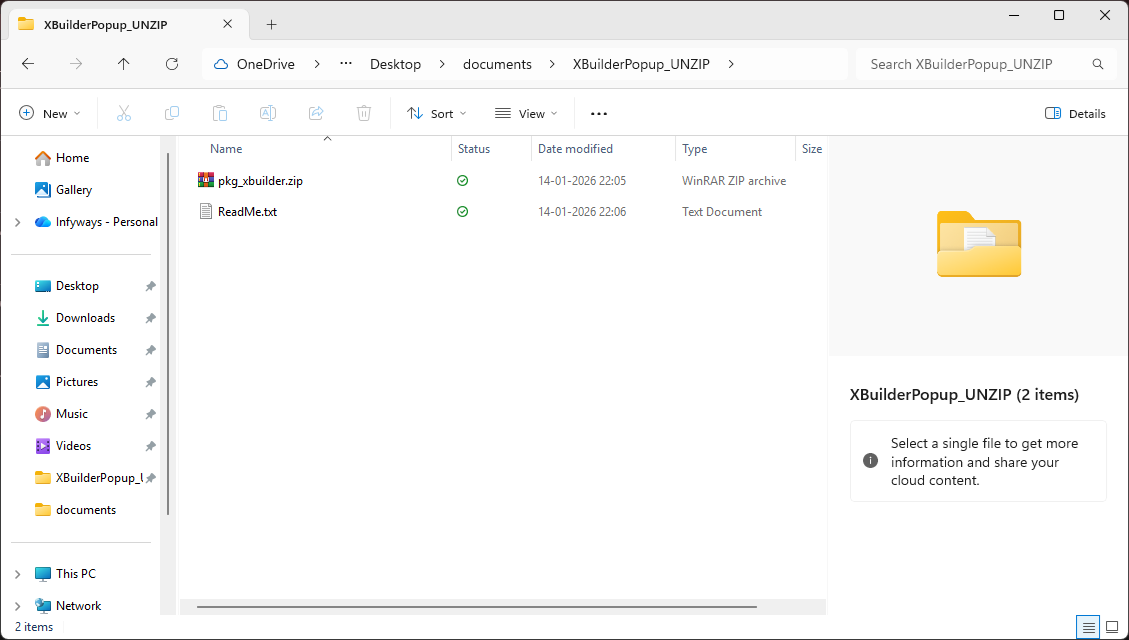
| File | Description |
|---|---|
pkg_xbuilder.zip | Main installation package (use this for installation) |
ReadMe.txt | Version information and release notes |
Do not extract pkg_xbuilder.zip. Upload this file directly to Joomla.
Installing the Package
Method 1: Upload Package File (Recommended)
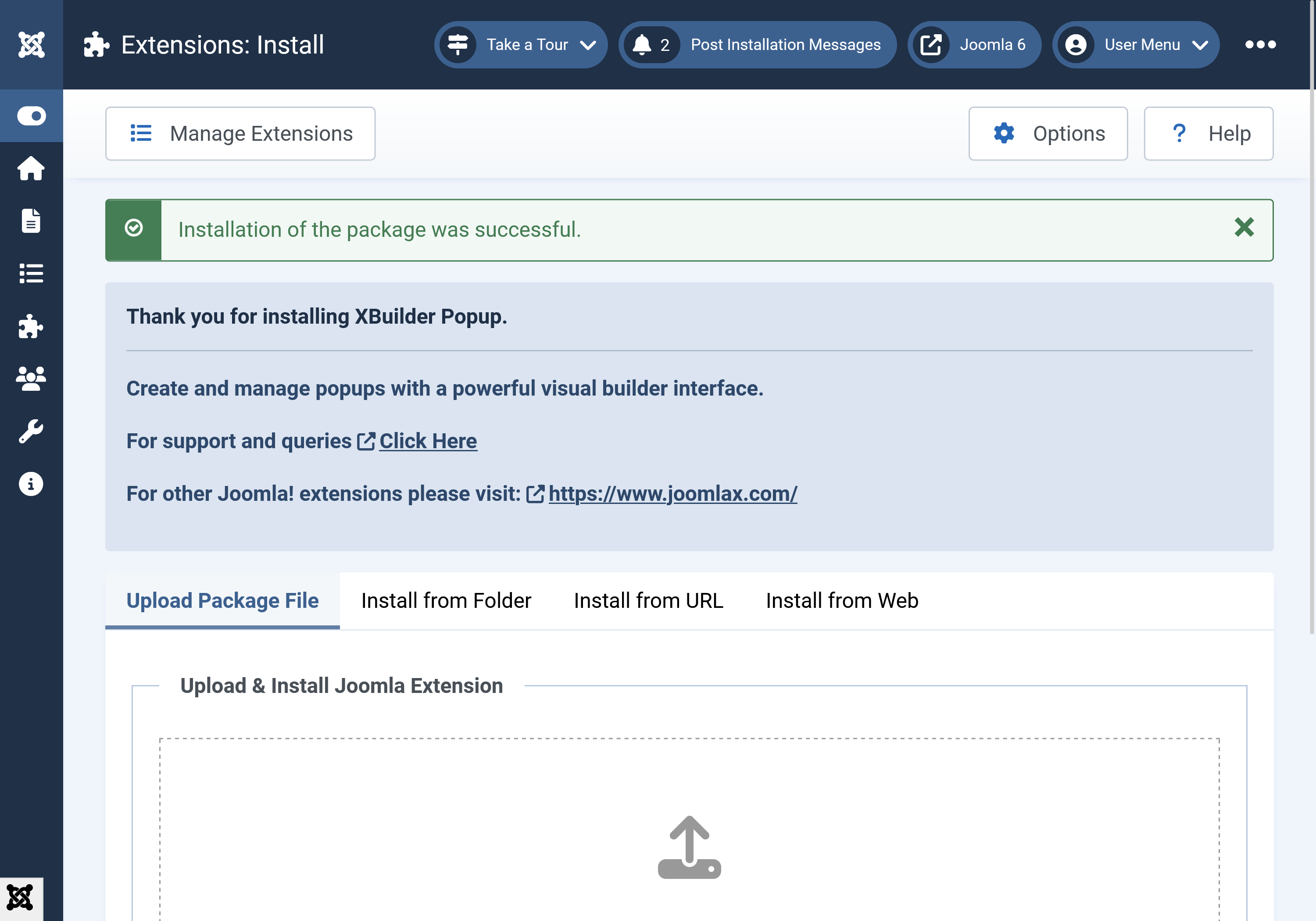
- Log in to your Joomla administrator panel
- Navigate to System → Install → Extensions
- Click on the Upload Package File tab
- Either:
- Drag and drop
pkg_xbuilder.ziponto the upload area, or - Click Or browse for file and select
pkg_xbuilder.zip
- Drag and drop
- Click Upload & Install
Method 2: Install from Folder
If you have FTP access:
- Extract
pkg_xbuilder.zipto your local computer - Upload the extracted folder to
/tmpon your server via FTP - In Joomla admin, go to System → Install → Extensions
- Click the Install from Folder tab
- Enter the path:
/tmp/pkg_xbuilder - Click Install
What Gets Installed
The package automatically installs both required components:
Component: com_xbuilder
- Location:
administrator/components/com_xbuilder - Media files:
media/com_xbuilder - Purpose: Popup builder and management interface
Module: mod_xbuilder_popup
- Location:
modules/mod_xbuilder_popup - Purpose: Frontend popup display
Verifying Installation
After installation, verify both components are properly installed:
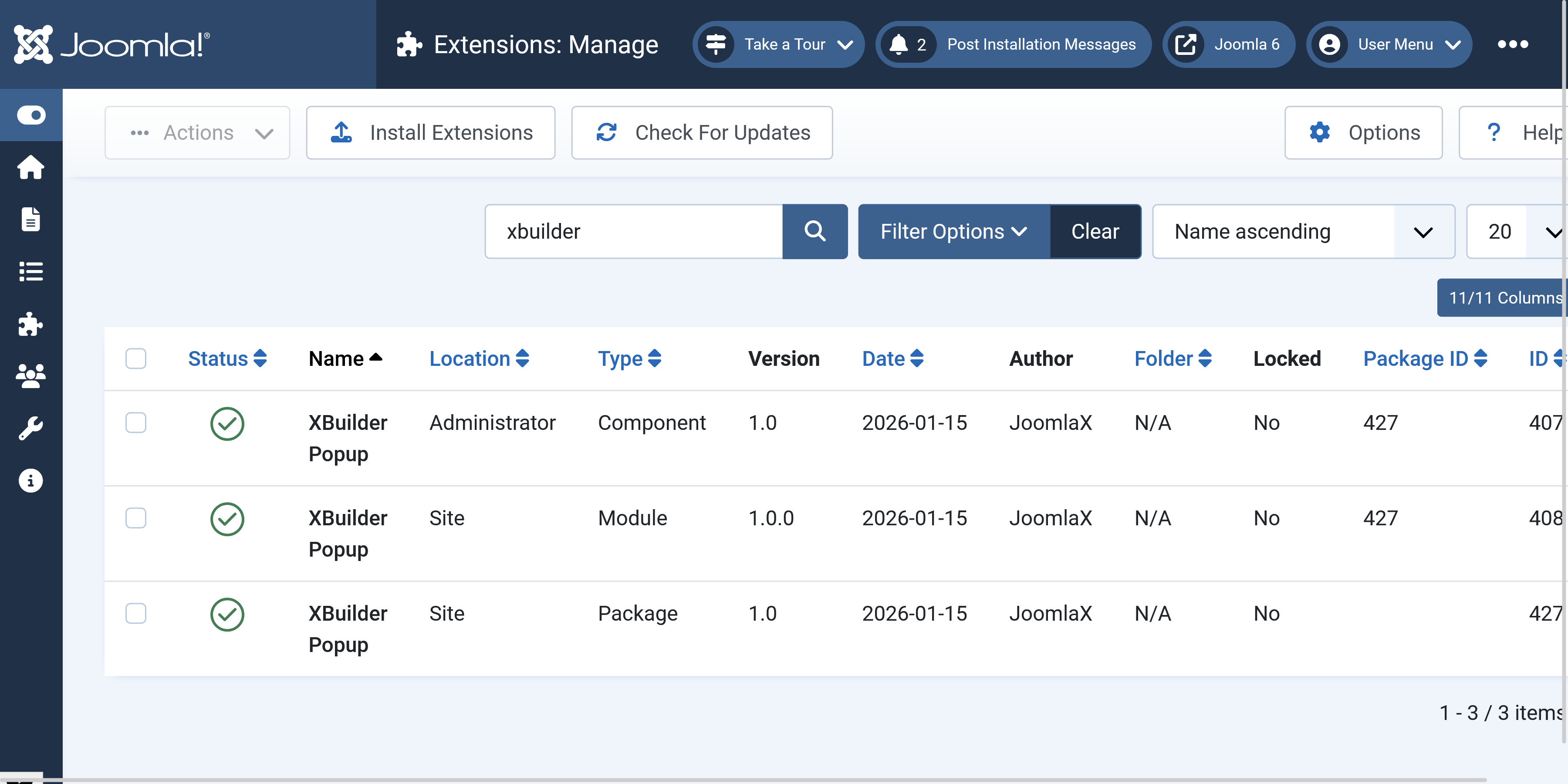
Check Extensions Manager
- Navigate to Extensions → Manage → Manage
- Search for "xbuilder"
- You should see:
- XBuilder (Component) - Enabled
- XBuilder Popup (Module) - Enabled
Check Component Access
- Go to Components menu
- You should see XBuilder in the list
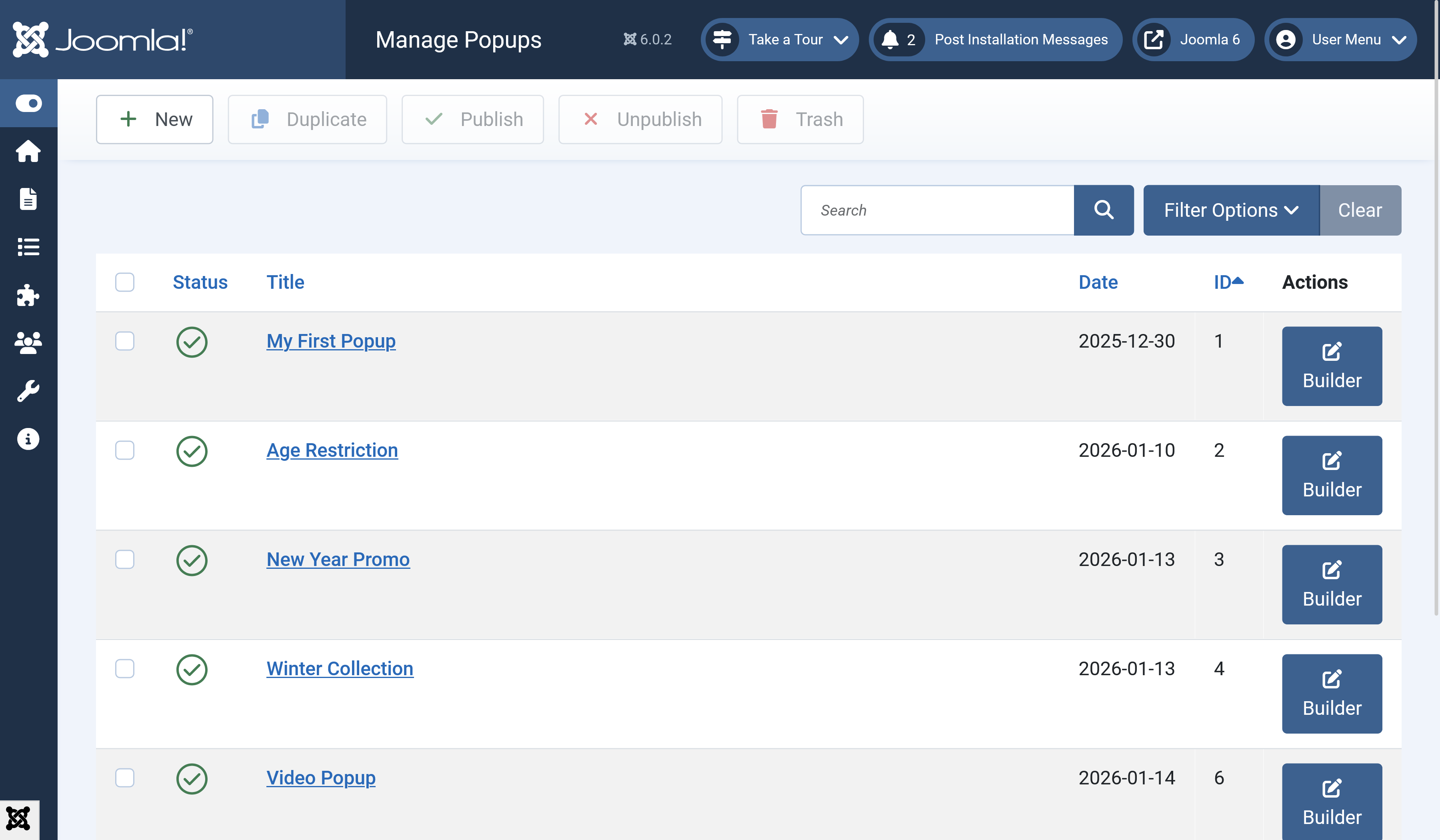
- Click XBuilder → Popups
- The popup list should load (initially empty)
Check Module Availability
- Navigate to Content → Site Modules
- Click New
- Search for "XBuilder"
- XBuilder Popup should appear in the module list
Installation Success
A successful installation shows:
Thank you for installing XBuilder Popup.
Create and manage popups with a powerful visual builder interface.
For support and queries Click Here
For other Joomla! extensions please visit: https://www.joomlax.com/
Post-Installation Steps
After successful installation:
- Create Your First Popup
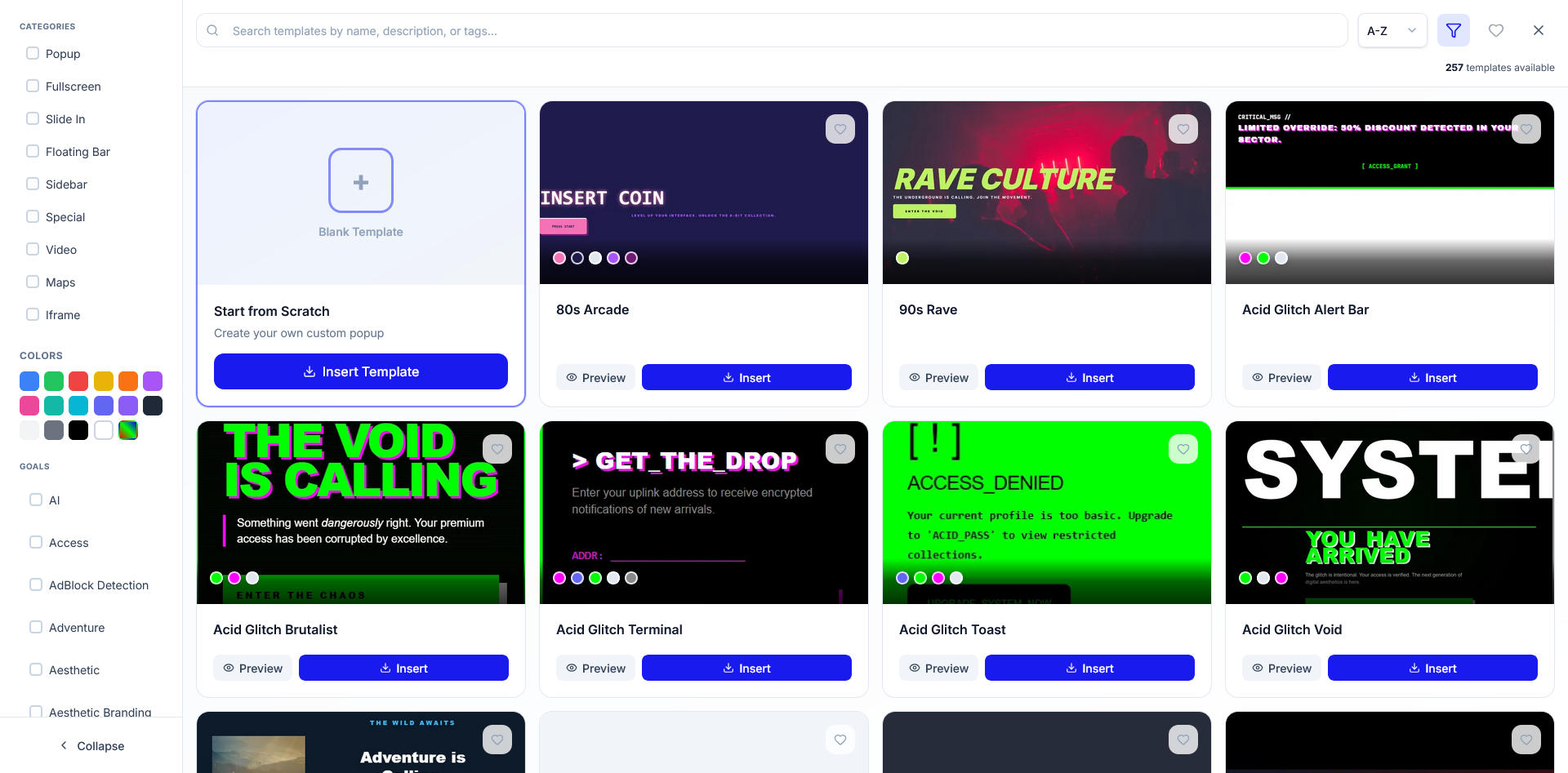
- Go to Components → XBuilder → Popups
- Click New to open the builder, Once you open it the Popup Library will open. You can either add a blank one or choose any from the list of 250+ existing Popups
- Complete the guided tour
 2. Set Up the Module
- Go to Content → Site Modules
- Create a new XBuilder Popup module
- Select your popup and assign to pages
Troubleshooting Installation
Upload Size Limit
If upload fails due to file size:
-
Check your PHP settings:
upload_max_filesize(should be at least 10M)post_max_size(should be larger than upload_max_filesize)
-
Use the "Install from Folder" method instead
Permission Errors
If you see permission errors:
- Ensure Joomla directories are writable:
/administrator/components/modules/media
- Check folder permissions (typically 755 for directories, 644 for files)
PHP Version Error
If installation fails with PHP error:
- XBuilder requires PHP 8.0.0 or higher
- Check your PHP version in System → System Information
Joomla Version Error
If installation fails with Joomla version error:
- XBuilder requires Joomla 4.0.0 or higher
- Works with Joomla 4.x, 5.x, and 6.x
Next Steps
- System Requirements — Detailed requirements
- Module Setup — Configure the display module
- Quick Start — Create your first popup